|
 A B L - H E L P P R O - D o w n l o a d P a g e
|
This is the download page of ABL-Help Pro
This is a safe install and we guarantee no spyware, malware,
viruses, or surreptitious code. We've been in the ABL business
since 1985 with a reputation for excellence and integrity. Our
contact information is on the ABL-Help website as well as in the ABL
Help File. You can also contact us with any questions.
|
S T O P
READ THIS FIRST
1.
Most of the users of ABL-Help are Lenders or Accountants
with HIGH SECURITY and downloading an
EXE file would not be
allowed. This causes a need to download the file with
the name .EXP and not .EXE. The instructions to rename
the file from .EXP to .EXE are at the bottom of this page.
2. The files below are ZIP files of the
ABLHelp Program and these are not installers. Users
must Un-Zip the files and then the .EXE can be run or the
.EXP version must be renamed to
.EXE
(see all notes below
about renaming the files).
3. Downloads typically go into the
Downloads folder on your hard drive.
4. If you are not getting the file saved, it
is likely that your firewall or virus scanner will not
allow the .EXE version. Try the
Firewall Friendly version if this happens.
|
Firewall Friendly EXP Version
(Must be renamed after
Un-Zipping)
Most Firewalls do NOT allow .EXE files to be downloaded or Run, even if
they are Zipped.
You can
Download this version by clicking the link below.
DO NOT Open / Run this version until it is Unzipped and renamed to
.EXE per the instructions listed below. |
|
Regular EXE
(Does not need to be renamed after Un-Zipping)
Most Firewalls do NOT allow EXE files to be downloaded or Run, even if
they are Zipped.
This
method is not likely to work for you. |
- Go to the Downloads folder and then
Un-Zip the file.
- DO NOT select Open / Run after the Un-Zip, you
MUST rename the Un-Zipped .EXP file to .EXE
to be able to run ABL-Help.
- Copy or Cut and then paste the
file to a folder of your choosing (e.g., ABLHelp) to place the
ABL-Help.EXE file into so that you can run it.
- You can make a desktop icon
of this by right-clicking and selecting More Options
and then the Send to option and pick Desktop.
|
|
- Go to the Downloads folder and then
Un-Zip the file.
- Copy or Cut and then paste the
file to a folder of your choosing (e.g., ABLHelp) to place the
ABL-Help.EXE file into so that you can run it.
- You can make a desktop icon
of this by right-clicking and selecting More Options
and then the Send to option and pick Desktop.
|
| The program EXE files are digitally signed with a
Code Signing Certificate. That means that the certificate
authority has checked us
out, verified that FinSoft and the registering officer exist and that
our address and phone numbers are genuine. The process also
requires FinSoft to have an encrypted hardware key to do the Code
Signing. This Code Signing
Certificate is part of the EXE files and can be seen in the properties
of the ABL-Help file. In addition, users that update the Root
Certificates (typically with a Windows update) will see that the program
creator is FinSoft and that the installer does not indicate an
unknown publisher. |
The links above are to download the install program that will:
- Download the program into Downloads
- Allow the user to UnZip the file
- Rename the .EXP file to .EXE if the Firewall Friendly version was
downloaded
- Place EXE file in a folder of your choice
- Put a link to the EXP file on the desktop if desired (see notes above)
R E M I N D E R:
IF YOU DOWNLOAD THE FIREWALL
FRIENDLY VERSION, YOU MUST RENAME THE
UNZIPPED FILE
FROM "EXP" TO "EXE" AFTER DOWNLOADING AND
AFTER UNZIPPING.
ABOUT CHANGING THE EXP FILE EXTENSION NAME:
Firewall
Friendly Version Reminder:
After downloading ABL-Help
(usually to your hard drive - Downloads folder), you will
need to UnZip the file and then change the .EXP name to
.EXE
Go to the Windows File Explorer:
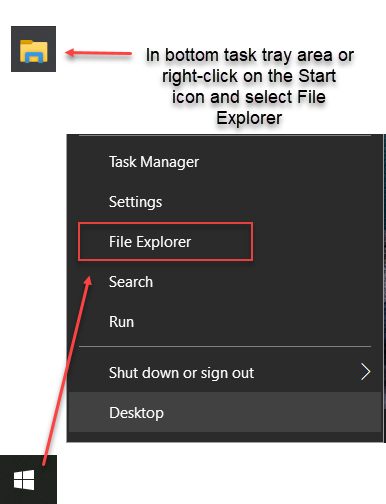
You need to see it in the rename edit box first.
If you can't see the EXP extension in Windows File
Explorer when
you go to change the name, then do this:
ABOUT CHANGING THE FILE EXTENSION NAMES:
After downloading the appropriate files, you
may need to change the EXP extension name of the file
to EXE. You need to see it in the rename edit
box first. If you can't see the EXP extension
of the file when you go to change the name, then do this:
Launch Windows Explorer (right-click on Start
and select the item with the word Explore):
FOR WINDOWS 11:
Cannot See the file extensions (exp):
Pick the View Tab and the Show >-
File name extensions option noted below:

We look forward to your comments, ideas and input.
|